
[feature] Add file link to cover cpp and rust build errors.

Changelist:
- Adds DocumentLinkProvider that creates links for build errors in
  Fuchsia output.
- Fix issue where the previous package list would not show when there
  was only one in list.
- Code cleanup to align fx build and fx ota.

Fixed: 415092093, 410808157
Change-Id: I4076ca6d226f821266028dcebf48f2ebe8a2a60d
Reviewed-on: https://fuchsia-review.googlesource.com/c/vscode-plugins/+/1266328
Kokoro: Kokoro <noreply+kokoro@google.com>
Reviewed-by: Oliver Newman <olivernewman@google.com>
Implements the commonly needed functionality for Fuchsia development.
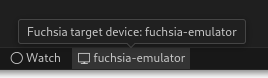
Select a Fuchsia device using the Device Selector in the bottom toolbar:
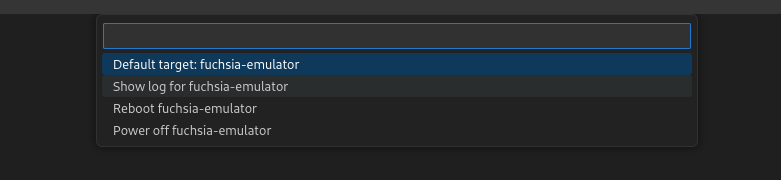
Select “Show log for device name” from quick picker:
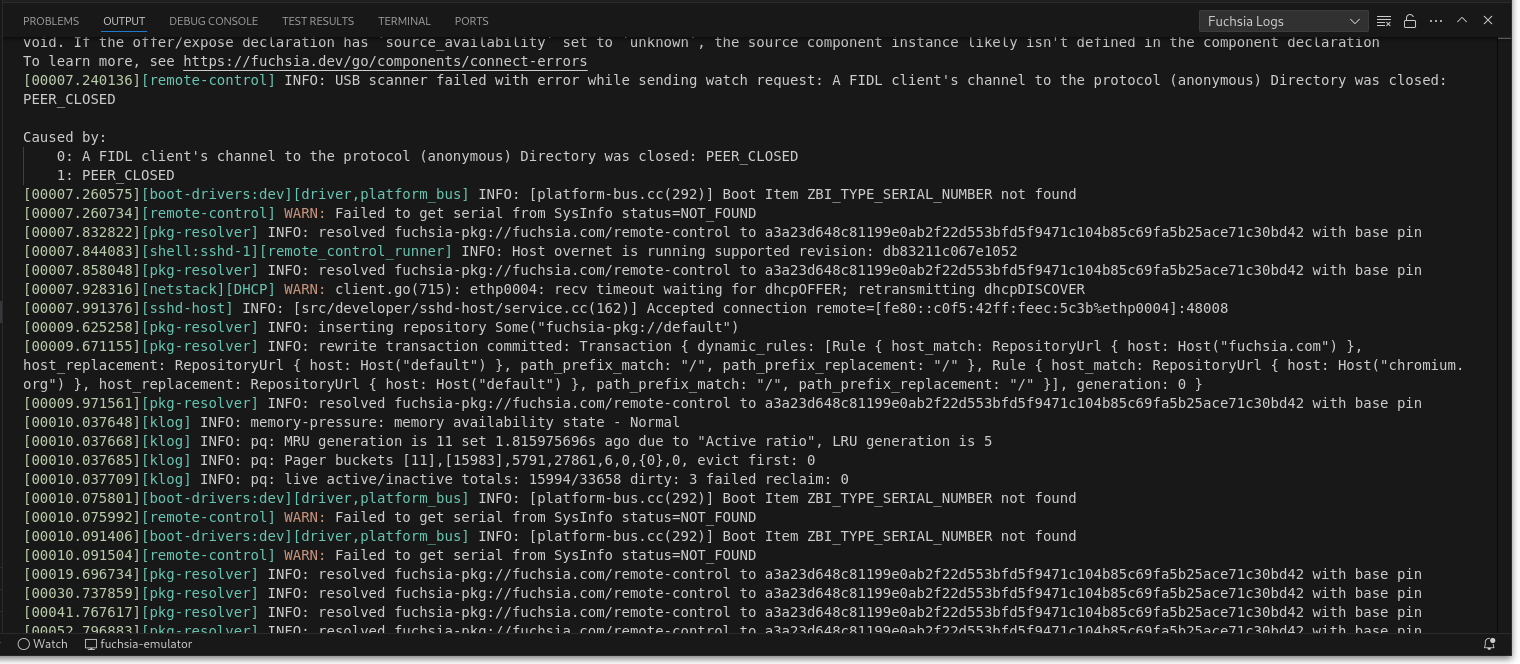
View the logs:
Select the “Testing” tab from the left navigation bar and view the list of tests in your current build configuration:
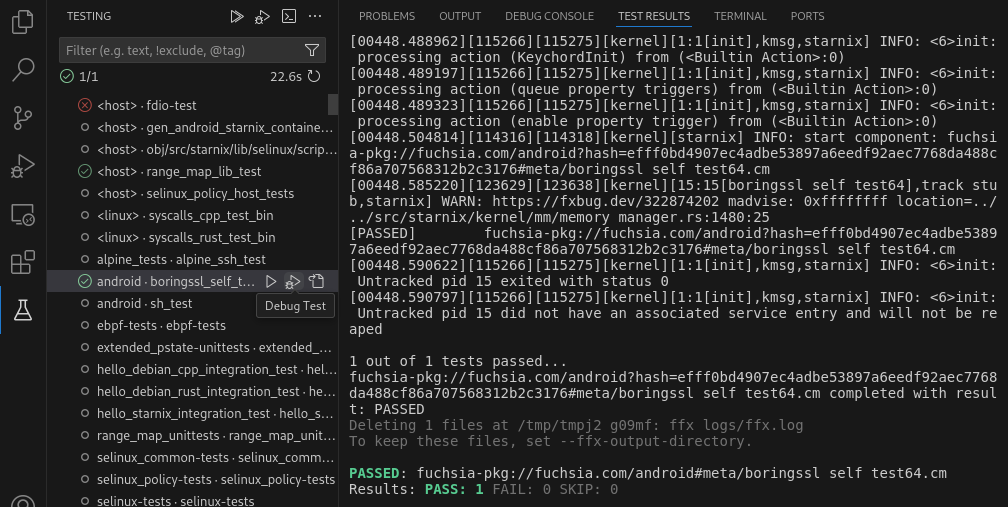
Click the “Run Test” or “Debug Test” button to run or debug the test. Double-click the test to jump to the BUILD.gn that defines the test.
Select the “Run and Debug” tab from the left navigation bar and expand the “Fuchsia Components” panel to view the components running on the device:
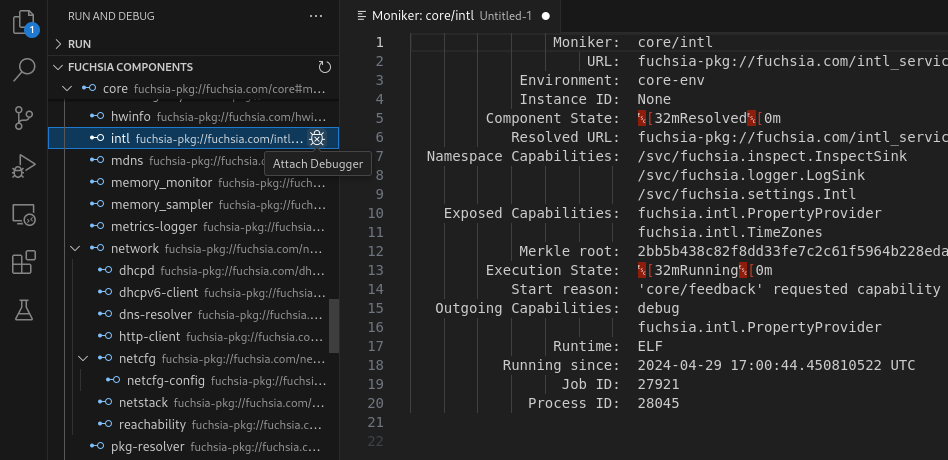
Click the “Attach Debugger” button to attach the debugger to the component. Set a breakpoint by clicking to the left of a line of source code to stop the component on that line of code.
Click a component to show more information about that component.
The FFX tool path can be set under Settings > Extensions > Fuchsia SDK. If this path is not set, the extension will automatically search for it at:
./tools/ffx./.jiri_root/bin/ffxThe default build task can be set under Terminal > Configure Default Build Task.... When set to fx build, the command can be run with Cmd+Shift+b on Mac and Ctrl+Shift+b on Windows and Linux.
Use of the Fuchsia core developer tools is subject to the Google Terms of Service. The Google Privacy Policy describes how data is handled in your use of this service.