
| commit | 6c04a15ee17cbf76a30f6795043b10dfb4198234 | [log] [tgz] |
|---|---|---|
| author | Amy Hu <amyhu@google.com> | Thu Dec 12 11:58:16 2024 -0800 |
| committer | Amy Hu <amyhu@google.com> | Thu Dec 12 11:58:16 2024 -0800 |
| tree | 92903e8eaef0805404a5489a0e50b61011e2025e | |
| parent | cc4b0ffd815c6e5ba967e1650c3607ee3a08d823 [diff] |
[feature] Show last selected product.board in quickpick

The current selection will be pushed to the top of the product and board list with this change.

Fixed: 378699195
Change-Id: I247fb032b504275fc5d883bef65b3223e3e9212b
Reviewed-on: https://fuchsia-review.googlesource.com/c/vscode-plugins/+/1172793
Reviewed-by: Adam Barth <abarth@google.com>
Kokoro: Kokoro <noreply+kokoro@google.com>
Implements the commonly needed functionality for Fuchsia development.
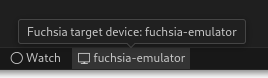
Select a Fuchsia device using the Device Selector in the bottom toolbar:
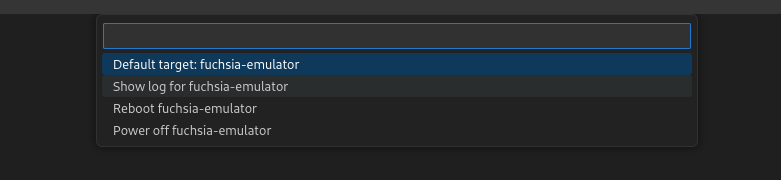
Select “Show log for device name” from quick picker:
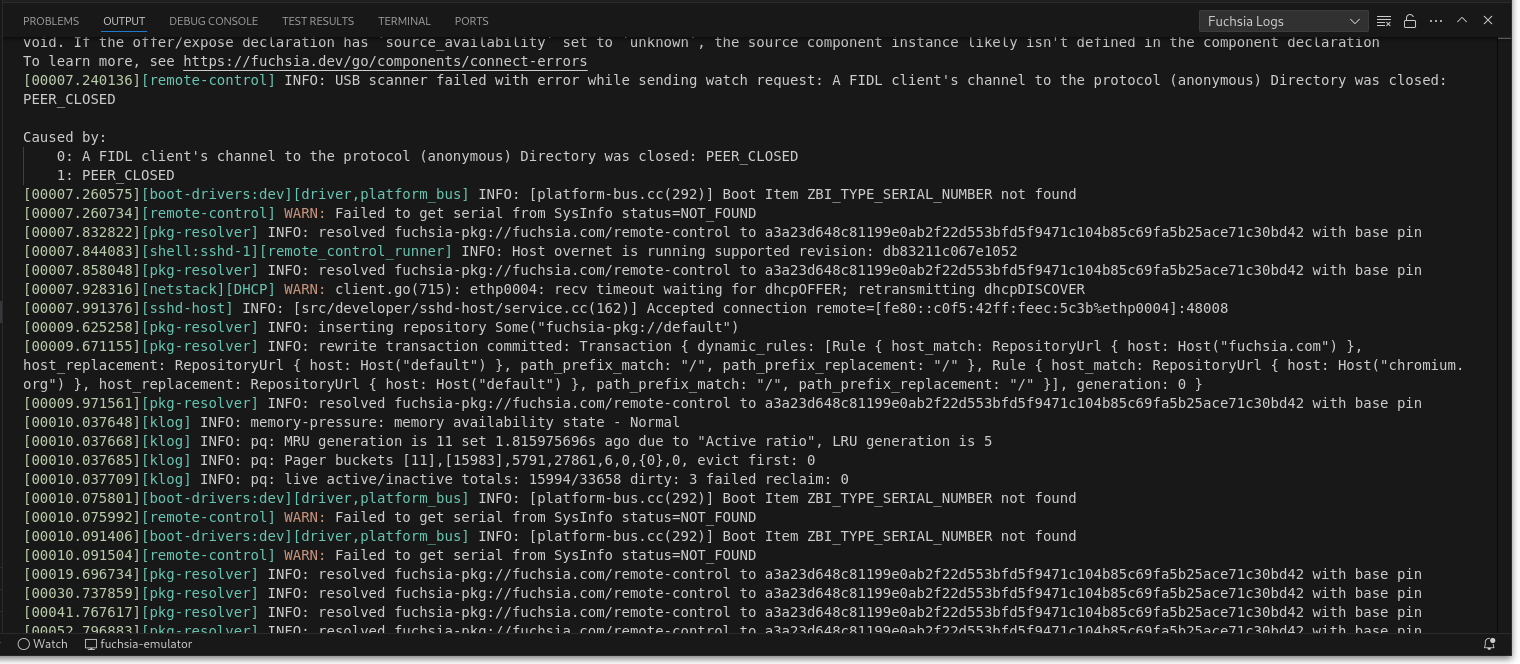
View the logs:
Select the “Testing” tab from the left navigation bar and view the list of tests in your current build configuration:
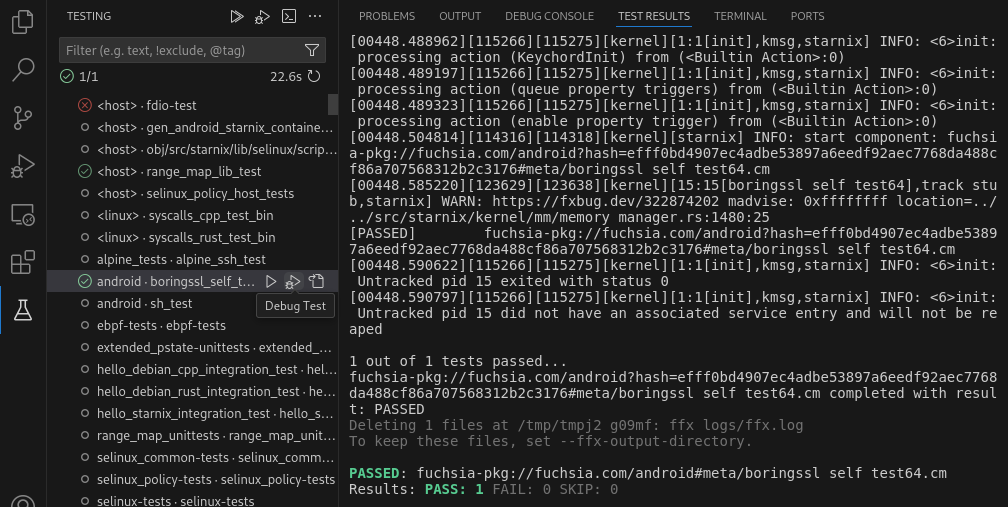
Click the “Run Test” or “Debug Test” button to run or debug the test. Double-click the test to jump to the BUILD.gn that defines the test.
Select the “Run and Debug” tab from the left navigtaion bar and expand the “Fuchsia Components” panel to view the components running on the device:
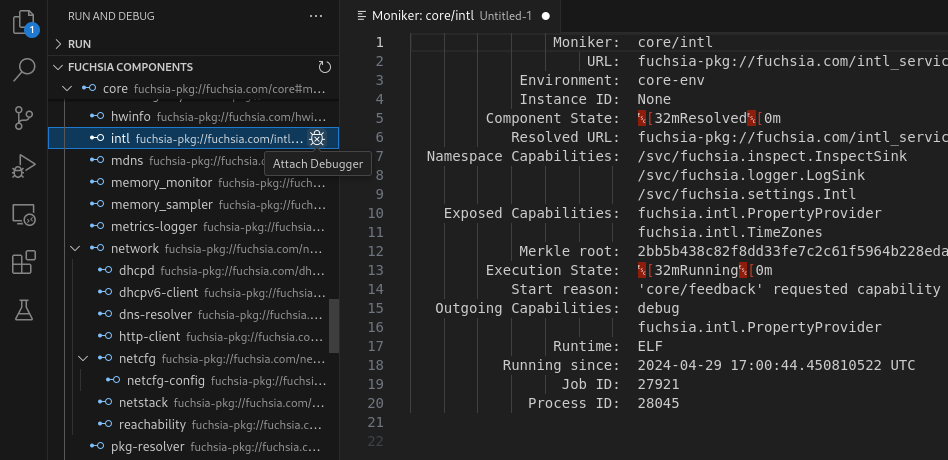
Click the “Attach Debugger” button to attach the debugger to the component. Set a breakpoint by clicking to the left of a line of source code to stop the component on that line of code.
Click a component to show more information about that component.
The FFX tool path can be set under Settings > Extensions > Fuchsia SDK. If this path is not set, the extension will automatically search for it at:
./tools/ffx./.jiri_root/bin/ffxThe default build task can be set under Terminal > Configure Default Build Task.... When set to fx build, the command can be run with Cmd+Shift+b on Mac and Ctrl+Shift+b on Windows and Linux.
Use of the Fuchsia core developer tools is subject to the Google Terms of Service. The Google Privacy Policy describes how data is handled in your use of this service.