

[debug] Improve debugger reliability.

Use `fx debug` instead of `ffx debug connect`, since `ffx debug connect`
requires a package server running, or else a nasty error popup like
"Error: Zxdb process terminated" appears.

`fx debug` wraps `ffx debug connect`, starting and managing a temporary
package server if needed, which mitigates this issue.

Fixed: 450890445
Depends-on: I49f0ca17aad0678ca05263f1af4c877c7fceaf83
Change-Id: I0b0082f04c148633a2ca7879cd2fc43a70200a38
Reviewed-on: https://fuchsia-review.googlesource.com/c/vscode-plugins/+/1440648
Dependencies-Satisfied: CL Deps Checker <cl-deps-checker@fuchsia-internal-service-accts.iam.gserviceaccount.com>
Kokoro: Kokoro <noreply+kokoro@google.com>
Reviewed-by: Jacob Rutherford <jruthe@google.com>
The Fuchsia VS Code Extension streamlines Fuchsia development by integrating essential tools and workflows within the editor.
Visit the fuchsia.dev reference for a detailed walkthrough of this extension's features, Using the Fuchsia extension for VS Code.
Ensure you have a Fuchsia source checkout. You may need to configure the path to your ffx tool:
Settings > Extensions > FuchsiaFuchsia: Ffx Path to the absolute path of your ffx executable.If not set, the extension will search for ffx in ./tools/ffx and ./.jiri_root/bin/ffx.
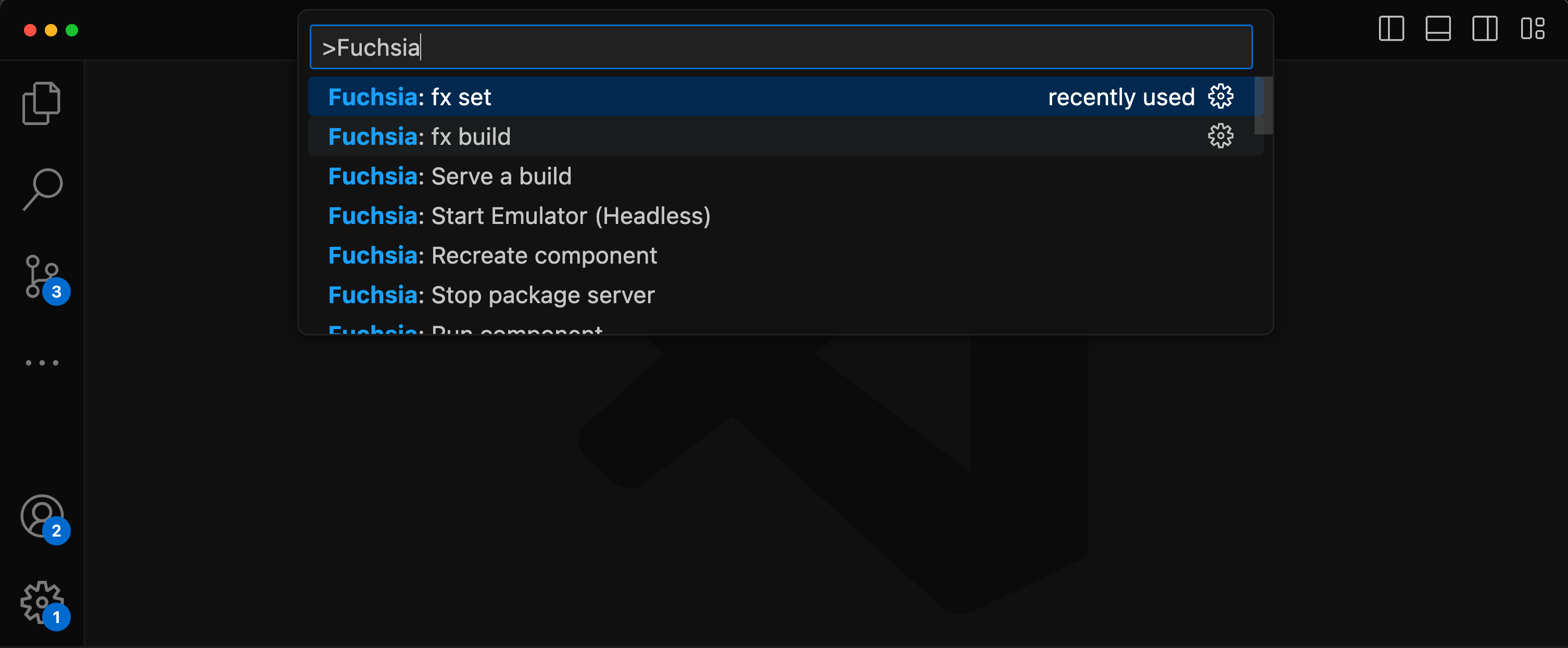
All features are accessible via the VS Code command palette Ctrl+Shift+P or Cmd+Shift+P. Type “Fuchsia” to see a list of available commands.
There are two options to set a keybinds for fx build.
Default build task
Terminal > Configure Default Build Task...Fuchsia Extension: fx buildCustom key
Preferences: Open Keyboard ShortcutsFuchsia: fx buildUse of the Fuchsia core developer tools is subject to the Google Terms of Service. The Google Privacy Policy describes how data is handled in your use of this service.